Showing posts with label jailbreak. Show all posts

How to jailbreak iOS 4.3.1 & iOS 4.3.2 & iOS 4.3.3

2
#UPDATE2: This post has been updated to include the jailbreak guide for iOS 4.3.3. The same method is used as for 4.3.2 and 4.3.1.


#UPDATE: This post has been updated to include the jailbreak guide for iOS 4.3.2. The same method is used as for 4.3.1.


Before reading anything below please note the following. If you are not interested in updating to iOS 4.3.1, not interested in jailbreaking or not interested in jailbreaking iOS 4.3.1 or 4.3.2 in particular, please read this post and back up your SHSH blobs for the 4.3.2 firmware. This will ensure that if you do wish to jailbreak later, you will definitely be able to or if you need to restore to iOS 4.3.2, that will always be possible.

iOS 4.3.1 basic information:

  • For iPhone 3gs/4, iPod touch 3g/4g, iPad 1/2
  • Baseband 05.16.02 for iPhone 3gs, 04.10.01 iPhone 4, 07.11.01 iPad 1 3g model
  • For a complete feature list of iOS 4.3.1 see this.

iOS 4.3.2 basic information

  • Bug fixes

iOS 4.3.2 basic information

  • Location tracking issue fix

Jailbreak basic information

  • Works on both PC and OSX
  • Unthethered (only need to do it once)
  • Does not currently work for iPad 2 (but does work for all other devices above)
  • If you need to update without updating your baseband (in other words if you want to unlock) this.
The method
0. Go back to the top of the page, read the first paragraph.
Delete any files on your device that you installed in cydia from Hackulo.us such as appsync. If you do not do this, you many end up with a device that gets stuck in a restore loop. You have been warned! More inforamtion can be found at the bottom of this post.
  1. Download the iOS 4.3.1 or iOS 4.3.2 firmware for your device. Get the firmware you need from here and remember the location you saved it to. Note that if you have an iPhone 4, unless your phone is on the Verizon USA network you have a GSM model not CDMA.
  2. Download redsn0w for OSX or Windows. Both programs are pretty much the same. I will be completing the tutorial with the OSX version, so the screen-shots may vary slightly to the Windows edition.
  3. Open iTunes and plug your device in. When you get to the screen below either hit "restore" while holding "option/alt" if using OSX or "shift" if using Windows. Browse to the IPSW file you downloaded in step (1) highlight it and press choose/open.
  4. Wait for iTunes to finish updating your device.
  5. Open Redsn0w and hit "browse" select the same IPSW file you just selected in iTunes.
  6. Hit open, wait for verification then hit next.
  7. Wait until you reach the screen below. At this point, unless you are familiar with redsn0w and know what the other options do, just check the box marked "Install Cydia".
8. From this point forwards the program is pretty self explanatory. Make sure that you follow the on screen instructions carefully, especially the DFU mode part.
9. After you have clicked finish and your device reboots, Cydia should be present on one of your home screens. If it is, success you have successfully jailbroken your device. If not, try again from step 5.

Troubleshooting step: If whilst attempting this your device gets stuck in a "recovery/restore loop" (basically iTunes prompts you to restore or says your iPhone is stuck in recovery mode, after after restoring it multiple times) read this post

After the process is complete, open Cydia, hit the "developer, no filters" option when prompted and allow Cydia to update fully. If you have not jailbroken before or if the option is presented to you, make sure to hit "make my life easier".

Thanks for reading, any questions please ask away below!

For more relevant information please see my jailbreak faq.

A nicer version of multitasking

0

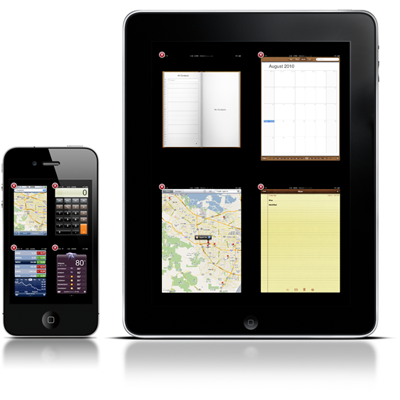
If you have ever used a mac, you may be familiar with "Exposé" a nice way of showing you what apps are currently running on your computer and allowing you to easily switch between them. Unfortunately, in my opinion, the way iOS shows you what apps are open and how to switch between them isn't great at all; it only shows four apps at a time and takes ages to close apps that you no longer want to run.

Fortunately for jailbroken phones there is an alternative, multifl0w, which is essentialy exposé for your device.

In order to install this, you will need to jailbreak your phone (read about this here) and have http://repo.insanelyiph0ne.com/ added to your sources in cydia (read about this here)

Once you have done the above open the above source in the "sources menu" in Cydia and scroll down to "multifl0w" and install it. After your device reboots you will have the software installed!

The software is configured to work how multitasking normally works but it can be changed to be activated in different ways inside the settings menu on your phone.

The devlopers have a website which can be found here

Let me know what you think of this great piece of software below!


How to install any iphone/ipod touch/ipad app for free

3
UPDATE: A NEWER (AND BETTER) VERSION OF THIS POST CAN BE FOUND HERE


Note: although below I refer to the device being used as an iphone, the same method below also applies for iPod touches and ipads.
Before reading any further, make sure you have a jailbroken iphone with cydia on one of your homescreens, and that your device is running a firmware that can be jailbroken (you can check your firmware version by going into settings, then selecting general, then selecting about).
How to get any app store application for free
Preparation
Note: Downloading paid apps via this method can be illegal if the copyright for the application is infringed. Download these apps at your own risk.
1. Open cydia. The first time cydia is opened it will open extremely slowly, this is normal. There will be a pop-up asking what kind of user you are. Select the option “developer (no filters)”. If cydia prompts that updates are available, select the option “update all” and wait for this to be completed.
2. Along the bottom of the screen you will see the options cydia, sections, changes, manage and search. Select manage.
3. There will now be 3 options on the screen, packages, sources and storage. Select sources.
4. Select edit in the top right hand side of the screen.
5. Select add in the top left hand side of the screen.
6. Type http://cydia.hackulo.us/ into the blue pop up box.
7. The screen will turn black and prompt you that your sources are being updated. When this is done, select return to cydia.
8. Click done in the top right hand side of the screen.
9. Your phone will show a list of sources. Select Hackulo.us
10.Scroll down and select Installous.
11.Select install in the top right hand side of the screen.
12.Select confirm in the top right hand corner of the screen.
13.Wait for this to be completed, select return to cydia.
14.Go back to Hackulo.us (remember this can be found by going to manage at the bottom of the screen, then selecting sources, then selecting Hackulo.us)
15.Install (In the same manner as Installous was installed above) Appsync for your version of firmware.
16.Once this is completed you can exit cydia.
Downloading apps using Installous.
If you have followed the above stages properly, there should not be a green icon on one of your homescreens with the label Installous. This is the only application you will need to use to download applications for your device. You will not need to use cydia again for this purpose.
If Installous is not present on any of your homescreens, turn off your device then switch it back on and check again. If it is still not present, reattempt the method above.
1. Open Installous.
2. Select search along the bottom of the display.
3. Search for the app you wish to download.
4. Select the app and select download on the right hand side.
5. A list of available downloads will come up. Newer versions of the application are towards the top of the screen.
6. Select a version and follow through until a “download started” message appears.
7. Select downloads along the bottom of the screen.
8. Select the application and select install.
9. When this is complete, exit Installous. The app you have just installed should be available on one of your homescreens. If not, turn your phone off then back on and check again. If the app is still not available, reattempt the method above.
Notes
While the above methods may initially appear daunting, the process is infact fairly simple. I have broken down each method into very small, simple steps.
The applications you download using this method will synchronise to your computer, so if at any stage your iphone becomes unjailbroken, once you jailbreak it again you can copy these applications back to your phone.
Updating your phones firmware will cause it to become unjailbroken.
Apps downloaded using this method cannot be updated via the app store, but can be updated in Installous.
If you would like pictures to help understand this method, please inform me in the comments section for this article as I can upload these if required.

how to perform a jailbreak on ios 3.1.3

1 comments
FIRMWARE 3.1.3 IS NO LONGER THE NEWEST FIRMWARE SUPPORTED BY APPLE. WITH THE RELEASE OF IOS4.0, I WOULD ADVISE USERS OF THE iPHONE 3G AND THE iPOD TOUCH 2G TO UPDATE TO ios4 AND UPDATE USING THIS METHOD. IF YOU ARE USING AN iPHONE 3GS, iPHONE 2G, iPOD TOUCH 1G OR iPOD TOUCH 3G OR AN iPAD, DO NOT UPDATE TO ios4 AND USE THE METHOD BELOW INSTEAD.

Background (aimed at readers with little previous jailbreaking experience or those interested in a brief history of the iphone jailbreak. The method can be seen below).

Since I bought my first iphone, I have always had an interest in keeping it "jailbroken". This is a common practice among advanced users of iphones that allows you to have more control over what your phone can or cannot do. It is estimated that 10% of all iphones, ipod touches and ipads sold worldwide are jailbroken.

Contrary to what some people believe, jailbreaking your iphone is actually an extremely easy and safe process, providing you can follow some simple instructions. The release of the jailbreaking utility "spirit" around a month ago made the process simpler than it has been for many months, and allows anybody to jailbreak their iphone regardless of its firmware or model.

There are many advantages to having a jailbroken iphone. Jailbreaking allows for almost limitless customisation, from the ability to choose a new background to choosing an entire new theme to make your phone stand out from the crowd. Jailbreaking also allows the user to download apps from outside of apples official app store via a second "app store" named cydia. It is also possible to download apps for free that you would normally be expected to pay for from the app store.

important points

Jailbreaking your iphone does not unlock it. You will still need a compatible SIM card.
If you update your devices firmware, your device will go back to normal and the jailbreak is lost. Therefore to undo your jailbreak, simply update your devices firmware.

The method

0. Ensure your ipod touch or iphone is on firmware 3.1.3 (you can check this by going to settings>general>about on your device). If you have an ipad, you should be on firmware 3.2.

1. Download "spirit" from www.spiritjb.com. Versions are available for all common operating systems.

2. Install "spirit"

3. Connect the ipod/iphone/ipad you wish to jailbreak to your computer. Ensure no other apple mobile devices are connected.

4. Run spirit. The program is a simple box. It will show you the type of device connected and there will be a button labelled jailbreak. Click this button.

5. At this point, spirit will prompt you that your device has been jailbroken. A purple screen will be present on your device complete with a progress bar. Wait until this bar is full and your device reboots before disconnecting.

6. There will be an app named "cydia" on one of your iphone home-screens. Congratulations, your device is jailbroken.

For other news and information regarding jailbreaking of idevices, visit blog.iphone-dev.org. This method was devised by comex.